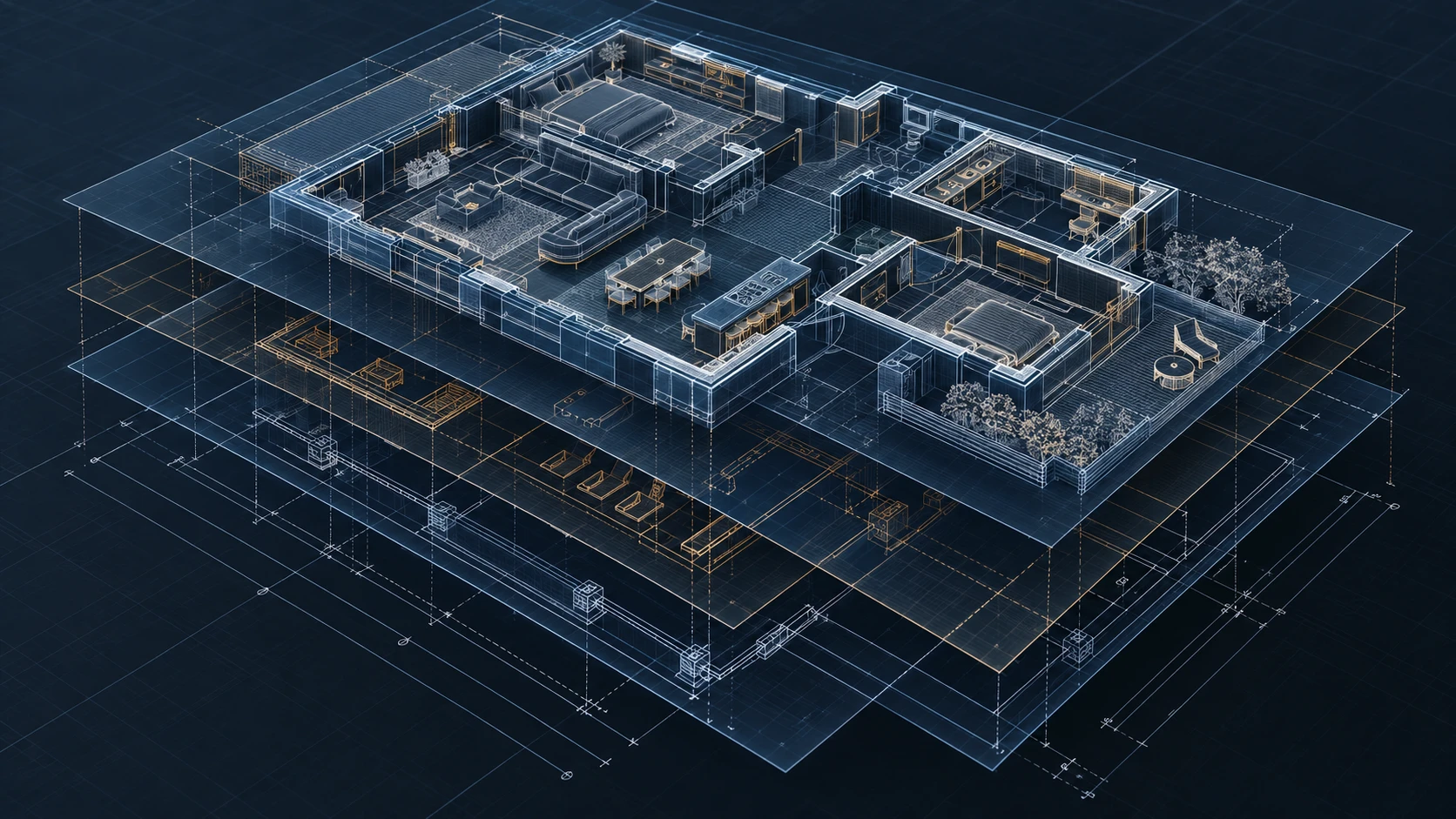
Layers are most useful when they answer a practical question: which parts of this drawing belong together? A small, consistent system usually helps more than a long list of nearly identical names.
You can start with four layers in a typical 2D drawing:
| Layer | Put this on it | Why separate it? |
|---|---|---|
GEOMETRY | The outlines that define the object | Keep the main drawing easy to identify |
CONSTRUCTION | Temporary guides and reference geometry | Hide guides when checking the finished result |
DIMENSIONS | Dimensions and measurement annotations | Review annotations without changing the outlines |
NOTES | Labels, callouts and general notes | Edit explanatory text independently |
These names are a working convention, not a required standard. Use the names your project or recipient needs when one is already defined.
Create layers before the drawing gets busy
Open Layer Manager, choose + Add Layer, type a name, and press Enter. Repeat for the groups you need.
Set the current layer before drawing a new group of objects. If geometry is already on the wrong layer, use the available layer reassignment tools to move it to the intended group. Layer Match is useful when an existing object already has the layer you want.
Avoid creating a new layer for every individual object. Two objects that need to be hidden, styled and reviewed together often belong on the same layer.
Let layer properties do the styling
Give each layer a clear color and, where appropriate, a linetype and lineweight. Keep objects set to From Layer when you want them to follow those choices.
An object with an explicit color or lineweight override will not follow that particular layer setting. If a line looks different from its neighbors after a layer change, inspect its object properties before changing the entire layer again.
Use color to help you work, then check the actual print preview. A bright construction color on a dark canvas does not guarantee a readable or suitable printed line.
Freeze, lock and plot solve different problems
Freeze hides a layer’s geometry and keeps it out of selection until it is unfrozen. Use it to reduce visual clutter while working on another part of a drawing.
Lock keeps the layer visible while preventing its objects from being edited. It is useful for reference geometry you want to see but do not intend to move.
Plot controls whether that layer participates in printing and PDF output. It is not a substitute for preparing a DXF export for another workflow. Review the exported file separately when the recipient needs editable geometry.
Finish with a layer review
Before sharing, unfreeze the layers needed for your review, check for misplaced geometry, and inspect the output preview. Leave the special layer 0 available; the editor uses it as a fallback layer.
Save a JSON backup before a major cleanup. A good layer system should make the drawing easier to understand without making the file harder to exchange. The goal is a clear relationship between the objects, their purpose, and the way you present them.